Saturday, September 28, 2013

FTU Tut - Pumpkin's Bane


This tutorial was written on 09/27/2013 and assumes you have working knowledge of PSP. Any simularities to other tuts is purely coincidental and not done on purpose.

For this tutorial you will need:
PSP - I use X3 but most versions will do
Animation Shop
Eye Candy 4000 Gradient Glow
Tube of choice, I used the art of Tiffany Toland-Scott
You can purchase this tube at CDO. Do not use without purchasing a license first.
Freebie Cluster available on the CDO Designer blog
Font of choice, I used AcroterionJF

Open a new image 800 x 800. Flood fill white. Copy your cluster and paste as a new layer. I chose to mirror my cluster but this is optional. Now the grass is a bit sparce on one side. So using your selection tool, draw a selection around the grass like so:


Promote selection to layer and mirror. Use your Move tool to move the grass back over so it sits on top of the part that's a bit thin and move this layer down. Merge visible. It should now look something like this:


Give the cluster a slight drop shadow of -1, 2, 50, 5. Make sure the Vertical is negative 1 so the cluster doesn't look like it's floating.

Copy your tube and paste as a new layer. Resize if needed. I resized mine down 90%, all layers unchecked.

Move this layer under the cluster layer and arrange where desired. Your going want it to look like the cat and pumpkins are sitting in the grass. Once you're satisfied with the placement, move it back up again for now.

Use your freehand selection tool to select any areas that you want to sit on top of the cluster. I chose the leaves:


Promote selection to layer. Then click on the original tube layer and press delete. Deselect. Move your main tube layer under the cluster now and give it a drop shadow of -3, 2, 60, 10.

Activate the promoted layer and give it a drop shadow of 2, 2, 50, 5.

Now hide the white background layer and copy merged. Paste back onto your workspace as a new layer. Duplicate and mirror. Move the two layers so they're closer together and with the duplicate active, merge down. Give it a radial blur with these settings:


Move this layer to just above the white layer. Now use your raster deform tool to drag the nodes in so the blur is only slightly bigger then the cluster. Then activate your crop tool and crop layers opaque. Now resize the whole thing down if desired cause it is rather huge. I resized mine 70%, all layers checked.

Activate the top layer in your palette which should be the promoted selection. Add your copyright, license and tagger's mark. If using this same cluster be sure to include Scraps by Hungry Hill in your credits.

Add your name using colors from your tube. Give it an inner bevel of choice, I used:


Then give your name a slight gradient glow. This is what I used, the color is #eddac9:


Then a drop shadow of -2, 2, 50, 5.

To Animate:

Open your animation in AS, if you resized your tag down, you'll need to resize the animation too. I resized mine 80%.

Back to psp, hide the top 4 layers in your palette. Should be your name, the credits layer, the promoted selection and the cluster. The tube, the blur and the white background should be the only thing visible. Lower the opacity for the time being on the tube to 30%. You just want to be able to barely see it.

Copy merged and paste as a new animation in AS. Now you're going to need to make the same number of frames as the animation. My animation has 26 frames, so press ctrl shift L repeatedly until you have the required number of frames.

Scroll back and click on frame 1. Select all. Now activate your animation, make sure the first frame is active and select all on it also. Click and drag the first frame of your animation onto the first frame of your tag. All the other frames will drag along with it and place in the proper places. If you don't like the placement, undo on both and try again. I placed mine so the little orange dot on the left is above the left side of the small pumpkin:


When you're happy with placement then go back to psp. Return the opacity on the tube to 100% again and go to Layers, View and click on Invert. But then make sure you unhide the tube layer again. So now all layers should show but the blur and white background should be hidden.

Copy merged and paste as a new animation in AS. Make sure your Propagate Paste is enabled. If you're unsure there's an icon on the tool bar or you can go to Edit, Propagate Paste. Now with your existing animation that you added the sparkles to, should still be all selected. Click on your single frame and drag onto the first frame of your animation, lining the kitty up so it matches. The propagate paste will then place the same image in all frames. If you mess up you can undo and try again.

Save your tag and congrats, you're done!

Tuesday, September 17, 2013

PTU Tut - Simply Elizabeth


This tutorial was written on 09/17/2013 and assumes you have working knowledge of PSP. Any simularities to other tuts is purely coincidental and not done on purpose.

For this tutorial you will need:
PSP - I use X3 but most versions will do
Eye Candy 4000 Gradient Glow
Tube of choice, I used the art of Enys Guerrero.
You can purchase this tube/scrap bundle kit at CDO. Do not use without purchasing a license first.
The scraps are by Rebel Dezigns and can only be used with this artist.
Mask of choice, I used WSL_Mask84 from WeeScotsLass.
Font of choice, I used Wolfgang Amadeus Mozart

Open a new canvas 650 x 700. Copy frame 4, and paste as a new layer. Move it down a bit. Copy your tube and paste as a new layer. Move this layer under your frame layer. Resize if needed, all layers unchecked. I resized mine 95%.

Arrange your tube where you want it to sit in the frame. I placed her so the gold metal parts at the bottom were just barely hidden. Duplicate this layer and move the duplicate to the top of your layer palette and hide for now.

Activate the frame layer and click on your freehand selection tool. Select around the frame like below:


Invert your selection, activate the bottom tube layer and press delete. Keep selected.

Open a paper of choice. I used paper 1. Duplicate the paper and close the original. Resize 80%. Copy and paste onto your workspace. Move this layer below the bottom tube layer and press delete. You may now deselect.

Activate your frame layer and give it a drop shadow of 0, 0, 100, 10.

Activate and unhide the top tube layer. Give it a drop shadow of -3. 3, 70, 10. Repeat the drop shadow at 1, -1, 50, 5.

Lower the opacity of this layer to about 50% and zoom in about 400%. Click on your eraser tool. You're going to erase everything that's on top of the bottom part of the frame. Don't worry if you go over, that's what the bottom tube is for. Make sure you erase enough so that'll be able see the frame's drop shadow.

When you're done, keep it zoomed in and return the opacity of the tube back to 100%. Now you can check for any stray pixels you missed by hiding and unhiding the tube a few times. When you're confident you've gotten them all you can zoom back out to 100% again.

Open element 28. Copy and paste as a new layer. Move below the paper layer and down at the bottom of your frame. See my tag for reference. Give it the same drop shadow as the frame but lower the opacity to 50.

Copy a paper of choice, I used paper 4. Paste as a new layer and move below the white mesh element you just added. Add mask from image. Merge group. Click on your raster deform tool and pull on the top and bottom nodes so you can see bits of the mask at the top and bottom. With this layer still active, click on your crop tool. Crop layer opaque. Make sure, however, that you don't crop off any drop shadows from your tube or frame/elements.

Add any other elements of choice or if you're done, resize the tag as desired. I resized mine 80%, all layers checked.

Add your copyright, license and taggers mark.

Add your name using font of choice. I used the same color for the foreground and background, chosen from my tube, #c39ca0. Convert to raster and give it a gradient glow using the settings below, the color is #4f1310.


Then give your name a drop shadow, I used -2, 2, 50, 5.

Merge visible and save as a png. Or merge all and save as a jpg. Congrats, you're done!

Wednesday, September 11, 2013

Animated Forum Tut - Moving Stripes


I have a new exclusive tutorial over at Creative Addictions. You can find it here. Remember you don't need to be a member to view or even post on the threads of my exclusive tuts. I love to see what people make from my tutorials so please share.

Saturday, August 31, 2013

Old School Forum Tag - Rain Rain, Go Away


This tutorial was written on 08/31/2013 and assumes you have working knowledge of PSP. Any simularities to other tuts is purely coincidental and not done on purpose.

For this tutorial you will need:
PSP - I use X3 but most versions will do
Animation Shop
Mura Meister Copies
Xenofex 2 Fluffy Little Clouds
Eye Candy 4000 Gradient Glow
Tube of choice, I used the art of Anna Liwanag.
You can purchase this tube at CDO. Do not use without purchasing a license first.
Wordart by me and rain animation here
Font of choice, I used Beatrice

Open a new image 600 x 250. Copy your tube and paste as a new layer. Apply Mura Meister Copies, Wallpaper Rotate. If your canvas isn't completely covered, undo and apply again until it's all covered.

Apply a radial blur with Zoom ticked, strength at 50 and Elliptical checked. All other options at 0. Go to Image, Flip.

Add a new raster layer, rename this layer Clouds. Apply Xenofex 2, Fluffly Little Clouds. Click on Settings and click on Factory Default and click ok. Then click on Cloud Mode and change to Fluffy.

Change the blend mode of Overlay and lower the opacity to 50%.

Open your rain image. Copy the Rain 1 layer and paste as a new layer on your tag. Repeat with rain 2 and rain 3. Rename the rain layers from the bottom rain 1, rain 2 and rain 3. Hide layer 2 and 3 for now. *Note, I mirrored all 3 layers of rain so they were going in the same direction of my tube's umbrella, but this is optional*

Now with rain 3 active, copy your tube and paste as a new layer. I moved her so she was slighly off center so she covers the point of the zoom. Give her a drop shadow of -3, 3, 70, 10. Repeat the drop shadow 1, -2, 50, 5.

Add a new raster layer. Select all and flood fill with black or a dark color from your tube. Contract by 1, add a new raster layer and flood fill with a contrasting color. I chose the red from my tube's lips. Contract by 3, add a new raster layer again and flood fill with black again. Contract by 1 and press delete on all 3 layers. You may now deselect.

Activate the middle colored layer. Give it some noise at Random, 20%, monochrome checked. Now activate the top layer and merge down twice. Rename this layer border.

Apply Eye Candy 4000, Gradient Glow. Change the Glow Width on the Basic tab to 3, Then on the Color tab click on Thin and change the color to black.

Add wordart or text of choice to the larger size of the tag. I used Beautiful ES and Beautiful Caps ES to make mine. Arrange where desired.

Add your copyright info, license and tagger's mark.

Add your name using font of choice. Since my tag is so dark I used white for both foreground and background with the stroke width at 0.5. Give it a bit of noise at the same settings as your border but change the number to 40. Give it the same gradient glow as you did the frame, but move the top slider over about to where the little dropper icon sits. Then give your name a drop shadow, I used -2, 2, 50, 5.

To Animate:

The rain 2 and rain 3 layers should still be hidden. Copy merged and paste as a new animation in AS. Back to PSP, hide rain 1 and unhide rain 2. Copy merged and paste AFTER current frame. Back to PSP, hide rain 2 and unhide rain 3. Copy merged and again past AFTER current frame.

Save your tag and Congrats, you're done!

Thursday, August 22, 2013

Old School Tut - Puzzle Fade


This tutorial was originally written by me back in 2007, this rewrite was written on 08/22/2013 and assumes you have working knowledge of PSP. Any simularities to other tuts is purely coincidental and not done on purpose.


For this tutorial you will need:

PSP - I use X3 but most versions will do
Animation Shop
Xenofex 2 - Puzzle
Eye Candy 4000 - Gradient Glow
Tube with matching image - I used the artwork of Rachel Anderson.
You can purchase this tube at CDO. Do not use without purchasing a license first.
Font of choice - I used Passion Conflict ROB

Open your tube and matching image. Duplicate both and close originals. Copy tube and paste onto your image, resize till it's the same size as the image and align it up so it fits on your image. I had to resize my tube down 78% so it fit just right.

Give your tube a drop shadow of -3, 0, 65, 10. Merge down and then duplicate. Give the duplicate layer a gaussian blur of 5.

Run your Xenofex 2, Puzzle filter with default settings. You should have something like this:


Add a new raster layer and flood fill with a color from your image. Select all, contract by 2 and press delete. Deselect. Give your border some noise at Random, 40% and monochrome checked.

Add a new raster layer again, this time flood fill with black. Select all, contract by 2, delete and deselect. Move this layer under your border with the noise. Give it a gaussian blur of 3.

Activate the top layer in your palette, should be the border with noise. Add your copyright, license and tagger's mark.

Add your name using font of choice, colors from your tube/image. Give it an inner bevel of choice. I used:


Then I gave it a slight gradient glow:


And then a drop shadow of -2, 2, 50, 5.

Copy merged and paste as a new animation into AS.

Now activate the layer that has the puzzle pieces. Run the puzzle filter again but click on the button that says 'Knockout 10% Remaining' 2 times and click on the Lighting tab and change the Groove Darkness to 10.

Copy merged and paste AFTER current frame in AS. Go back to psp, run the filter and click the Knockout button again 2 times. Again, copy merged and paste AFTER current frame.

Repeat these steps until almost all pieces are left. The filter doesn't really remove the last bits, so when you have just a little bit left, then hide that layer and copy merged and paste after current frame.

Now click on your second to last frame. I have 10 frames so I'll click on frame 9. Scroll back to the beginning. Hold down shift and click on frame 2. Now all the frames from 2 to 9 are highlighted. Copy, then go back to your last frame, click on it and paste AFTER current frame again. Then go up, click on Animation and click on Reverse Frames.

Select all, press Alt Enter to bring up the Frame Properties box. Change the speed to 15. Click on your frame with no puzzle pieces so it's the only highlighted frame. Bring up the frame properties box again and change the speed for this frame to 100. Scroll back and click on frame 1, change the speed for this frame to 50.

Save your tag and Congrats, you're done!

Tuesday, August 6, 2013

New Old School Tut - Falling Leaves

Hello everyone. I have a new exclusive tut over at Creative Addictions. This uses the art of Jessica Dougherty, which you can buy at CDO. 
Remember, you don't need to be a member of CA to view my exclusive tuts and even guests can post their results. I loved to see anything you make from any of my tutorials. 

Tuesday, July 30, 2013

Old School Forum Tut - Weaved Beauty


Hello everyone. I have a new exclusive tut over at Creative Addictions. This uses the art of Jasmine Becket-Griffith, which you can buy at CDO. 
Remember, you don't need to be a member of CA to view my exclusive tuts and even guests can post their results on the threads. I loved to see anything you make from any of my tutorials.

Sunday, July 28, 2013

Lots of Avatars!

It's been awhile since I shared any new avatars with you all. You can find them all here. All the new ones are shown below.


Saturday, July 27, 2013

PTU Tut - Showtime


This tutorial was written by me on 07/27/2013 and assumes you have working knowledge of PSP. Any simularities to other tuts is purely coincidental and not done on purpose.

For this tut you will need:

PSP - I use version X3 but most versions will do
Xero - Porcelain
Eye Candy 4000 - Gradient Glow
Tubes of choice - I'm using the artwork of Leonida Preda. You can buy them from CDO. Do not use these tubes without purchasing a license first.
Scrapkit by Ladyhawwk Designs. This kit is part of a Bundle Pack goes with this Pack 4 and can only be used with this artist's tubes from CDO.
Mask of choice, I used Mask 30 from Insatiable Dreams. It's in the 3rd mask collection.
Font of choice, I used Caswallon Demo.

Open a new workspace 750 x 700, flood fill white. Open your mask and minimize.

Copy Frame 1 and paste as a new layer, rotate to the right 90 degrees and resize by 80%. Sharpen 1 time.

Click inside your frame with your magic wand. Expand by 13. Copy a paper of choice, I used paper 10, onto your workspace. Invert selection and press delete. Move the paper the paper under the frame layer. Do not deselect yet. Copy your main tube and paste onto your workspace. Arrange her in the frame as you like. Duplicate this layer and make sure one layer is under the frame and one above it. Activate bottom tube layer
and press delete. You may now deselect.

Activate the top tube layer. Apply Xero Porcelain with the following settings:


Give it a drop shadow of -2, 3, 50, 10. Then repeat the drop shadow with 1, -2, 50, 5. While we're at it, let's give the frame a drop shadow of 0, 0, 100, 10.

Now make sure your top tube layer is active and we're going to temporarily lower the opacity to about 50. Grab your erasor tool and let's zoom in about 400%. We're going to carefully erase any of the top tube that sets above the bottom part of the frame. Make sure that you erase enough so that the shadow from the frame shows on the tube. Here's an example of part of it that I've erased:


When you're done, return the opacity to 100% but stay zoomed in. Now you can hide and unhide the layer a few times so you can see if you missed any pixels that need to be removed. When you're satisfied you can zoom back out to 100%.

Now open up Element 55. Duplicate and close the original. For some reason it has a white background, but we're going to get rid of it. Click on the white area outside the film strip with your magic wand. Make sure you get it all selected. I had to click down at the bottom on mine to get it all. Once it's all selected, hit delete and deselect. Now click on each of the grey squares inside the film strip and remove them like you did the white border. Resize by 70%.

Using your magic wand, click inside the boxes that were grey before. Expand by 3. Copy and paste a paper of choice, I used paper 8. Invert selection, press delete and move this layer under the strip. Deselect.

Ok with the paper layer still active, we're going to work on just one box at a time adding tubes to it. Copy one of your tubes and place her where you want her within the first box. Resizing if necessary. If you want to use the same tube just duplicate and move the dup layer to where you want it in the next box. Keep duplicating or adding new tubes till all all 5 boxes have some part of a tube in them. Now hide all tubes
but the first one and activate the strip layer. Click inside the box with the tube and expand by 3. Invert, activate that tube layer and press delete. Deselect. Unhide the next one up. Click inside the 2nd box with the magic wand and repeat what we did before. Keep doing this till you have all 5 done. When done you'll have something like this:


You can now copy merged and paste the film strip onto your workspace. Rotate 45 degrees to the right. Sharpen 1 time. Arrange over the top right corner of your frame and move this layer below the the top tube layer. See my tag for reference. Give the strip the same drop shadow as the frame but lower the opacity to 80.

Copy element 59 and paste as a new layer. Resize 50% and sharpen. Rotate 15 degrees to the left and arrange on the top left of the frame under the tube like you did the strip.

Copy element57 and paste as a new layer. Resize 40% and arrange it on the right side of the frame.

Copy element56 and paste as a new layer. Resize 40% and rotate 45 degrees to the left. Arrange on the left side of the frame under the main tube.

Copy wordart 2, paste as a new layer, resize 60%, arrange at the bottom of the frame.

Give all of your elements and the wordart the same drop shadow you gave the strip.

Now activate your raster 1 layer which should be the one you floodfilled with white at the beginning.

Copy a paper of choice, I used paper 14. Create a new mask layer from image. Select your mask in the drop down menu and click ok. Merge group. Then copy a second paper, I used paper 8, paste as a new layer and add the mask again like we did before, merging group as you did the first one. Then lower the opacity on this layer by 70%. Merge the gold mask layer down onto the first one. Now resize this layer 105%, all layers unchecked.

With your mask layer still active, crop your tag to remove any excess space. Make sure you don't cut off any tubes or drop shadows. Use the nodes at the top/bottom or sides to drag out if needed.

Now I don't like large tags so I resized mine down 75%, all layers checked. Make sure you resize before adding copyright info.

Activate the top layer in your layer palette, should be the wordart. Add your copyright, license info and taggers mark. Don't forget to add credit for the scrap kit if required by the designer.

Add your name using colors from your tag. If you want to use the same colors as me I used #9e7004 for the foreground and #f1ae02 for the background. Then give it an inner bevel. This is one I've used before when I use gold colors.


Give it a gradient glow, the color is #d7c570:


Then a light drop shadow of -1, 1, 50, 5.

You can now delete the white background layer, merge visible and save as a png or merge flat and save as a jpg. Congrats, you're done!


Sunday, July 14, 2013

New Old School Tut - Summer Sexy

This tutorial was written by me on 07/14/2013 and assumes you have working knowledge of PSP. Any simularities to other tuts is purely coincidental and not done on purpose.

For this tut you will need:
PSP - I use version X3 but most versions will do
Animation Shop
Template 82 by Blissfully Beth (download pack 81 - 90 on the left side of the page)
Tubes of choice: I used 3 by PinupToons, 32-1, 36-3, 119-2. You can purchase these tubes at CDO. Do NOT use without purchasing a license first.
Reflet Program here
This is a stand alone program, just save it to My Documents or anywhere you can easily find it.
Doodle frame and water tube here
The frame was made by me using brushes and preset shapes
Xenofex 2
Eye Candy 4000
Font of choice: I used Piranesi It BT

Open all tubes and template in psp, duplicate and close the originals. Remember to save as you go as this tut has a lot of steps.

First, we're going to change our template from 200 ppi to 72 ppi. So shift S to bring up the resize menu and change the Resolution to 72 pixels per inch and the Pixel Dimentions to 100 percent. Make sure all layers is checked. Now resize the template again to 80%, all layers checked and delete the copyright layer, the black circle layer and the 2 dark grey bars at the bottom of the template. Activate the grey circle layer.

Copy your water tube and paste as a new layer on your template. Using your raster deform tool, pull on the top and bottom nodes until the water fills up the entire blue circle frame.


Now copy this layer and paste as a new image. We're going to temporarily save it as a psd file on our desktop. I named mine water.psd.

Open up your Reflet program. Click on the folder icon and find your water image that you just saved on your desktop. Make sure you have images at 5, height at 90% and perspective ticked. Click on the 3rd icon, looks like a floppy disk. Make sure export format is gif. Tick Reflection Only. Color count should be 256. Click ok and name it water.gif. Again, save it on your desktop. When it asks if you want to create a HTML page for test, click no. You can now close Reflet.

Open up Animation Shop, find your water.gif file on your desktop and open it up. Select all and copy. Go back to psp and paste as a new image. Starting from the bottom rename them water 1, water 2, etc.

On your template you can now delete the water layer. Make sure the grey circle is active and go back to your water frames that you pasted over from AS.

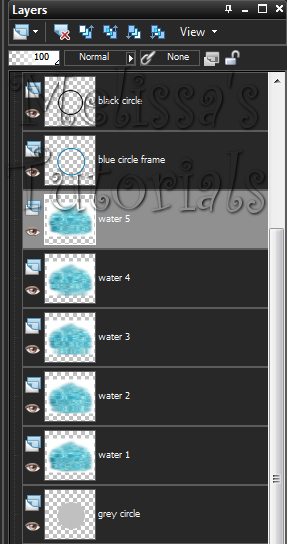
Starting from the bottom copy the water 1 layer and paste as a new layer on your template. Go back and copy water 2 and paste it as a new layer on your template again. Repeat for all 5 water layers. Rename the layers in your palette on your template to reflect the same you did for the copied layers from AS. It should look like this:


Activate the blue frame, click inside with your magic wand. Expand by 5. Invert selection, activate the water 5 layer and hit delete on your keyboard. Then activate the water 4 layer and hit delete. Repeat with the other 3 water layers. Deselect. Hide all the water layers but the first one. Give your blue circle a drop shadow of 0, 0, 50, 5.

Make sure your blue circle layer is active and copy your Luci tube and paste as a new layer. Resize 85%, all layers unchecked. Arrange her so her finger tips are hanging over the bottom of the frame. See my tag for reference. Give her a drop shadow of -3, 0, 60, 10.

Activate the heart layer and mirror. Use your mover tool to place it where you like it. Repeat the mirror with the heart frame layer, line it up with the heart layer.

Activate the heart layer again. Click on with your magic wand. Apply Xenofex 2, Little Fluffy Clouds with these settings:


While you still have the heart selected, this is good time to line up that heart frame again in case you didn't get it quite even before. Deselect when done.

Make sure your heart frame layer is active. Click on it with your magic wand, add a new raster layer and flood fill with the same color as the blue circle. Deselect. Activate the heart frame layer again and press delete on your keyboard. Now click the flood filled layer and merge down. Give it a drop shadow of 0, 0, 50, 5.

Now select your second PUT tube, copy and paste as a new layer. Move her over the heart, resize if needed. I resized mine 80%. Move this layer under the heart frame if she's not already. Give her a drop shadow of -1, 0, 50, 5. Activate the heart frame. Click inside with your magic wand. Expand by 4. Invert Selection, activate the tube and hit delete. Deselect.

Copy your 3rd PUT tube, paste a new layer on your template, resize same as the other tube. Arrange where desired and give same drop shadow as before.

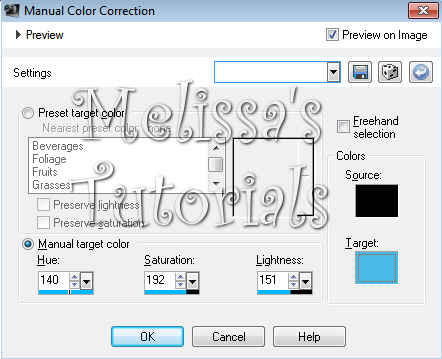
Now I moved the wordart over to the left so it lines up with the main tube fingers. See my tag for reference. Use your Manual Color Correction tool to change the color of the wordart. I changed mine to #49bae5.


Give it the following inner bevel:


Then give it a slight gradient glow using these settings. The basic tab at 3, 25, 100, the box checked. Then the color tab like this, the blue is #2f7b97:
 

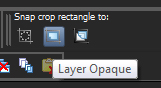
Copy your doodleframe and paste as a new layer. Arrange it so it's centered with the blue circle and move down in your layer palette so it's under the grey circle. Give it a drop shadow of 0, 0, 50, 5. Now with this layer still active, click on your crop tool. Where it says Snap crop rectangle to: click the middle icon for layer opaque.


If you need to, drag the top and bottom nodes so you don't crop off the main tube's head/drop shadow or the wordart. Double click or click the green check mark when you're satisfied.

Now activate the top layer in your palette. My tag is too big for my tastes and so I'm going to resize it again by 85%, all layers checked.

Now add your copyright, license info and taggers mark.

Click on your text tool, add your name using your chosen font and foreground/background colors from your tag. I used #057cb3 and #66c9e4. Rotate 45 degrees to the left. Arrange where you like it and convert to raster. Give it the following inner bevel and gradient glow and then a drop shadow of -2, 2. 50, 5:


Activate on the blue circle layer. Copy merged and paste as a new animation in AS. Go back to psp, unhide water 2, copy merged and paste AFTER current frame in AS. Repeat with each of the other water layers until you have all 5 frames in AS.

Save your tag and congrats, you're done!


Saturday, June 29, 2013

New Exclusive Tut - Prowler - FTU


Hello everyone. I have a new exclusive tut over at Creative Addictions. This uses the art of Garrett Blair, which you can buy at CDO. 

Remember, you don't need to be a member of CA to view my exclusive tuts and even guests can post their results on the threads. I loved to see anything you make from any of my tutorials.

Monday, June 17, 2013

New Tut - Music Move You - PTU


This tutorial was written by me on 06/17/2013 and assumes you have working knowledge of PSP. Any simularities to other tuts is purely coincidental and not done on purpose.

For this tut you will need:

PSP - I use version X3 but most versions will do
Template from Scrap It Studio It should be the first on the page
Scrap Kit: IB-Deacon Black-77-3 from CDO
Tube of choice: I used the art of Martin Abel. You can buy this tube at CDO here
WSL_Mask81 from WeeScotsLass. You can find links to download most of her mask in the right hand column
Xero - Porcelain
Eye Candy 4000 - Gradient Glow
Font of choice, I used: MargaritaVille

Open template in psp, duplicate, close the original and delete the © layer. Now we're going to do some modifications on our template. Remember to save as you go.

In your layer palette, click on the Player layer. Move it down till it's under the Top Left Frame Mat layer. It should now be directly above the Menu Mat layer.

Now click on the Left Chrome Frame layer. You'll see that she didn't make the frame all the way around. So we're going to fix that. Duplicate this layer and mirror. Move it back over so it lines up with the original. An easy way to make sure it's lined up right is to click on your Raster Deform tool. Look at Position X and Position Y. X is horizontal, Y is vertical. Compare the 2 layers and click on the up or down arrows till both numbers match up on both layers. So for mine, both layers at are X: 31 and Y: 40.

Now click on your selection tool. Make sure you're on the duplicate layer. You're going to draw a selection around part of the frame like so:


Then press delect and deselect. It should look something like this.

Your copy of the left frame should still be active. Merge down 1 time.

Now we're going to repeat the process with the Bottom Chrome Frame layer.

Now over to our scrap kit, open element 18, duplicate and close the original. I'm only going to use the speakers part, not the stands. So again using my selection tool, I'm going to draw a selection starting with the left speaker, just under the speaker and down over the stand, like so:


It might help to zoom in a bit so you can see the underside of the speaker better. Press delete when done. You can undo and try again if you goof. When you get one done, do the same for the other speaker. You can use your mover tool to move them down on the canvas. Then draw your selection around 1 of the speakers, cut and paste as a new layer on your template.

Depending on which one you moved over first, place it over either the left or right chrome frame so that the design on the side of the speaker is on the inside. See my example tag for reference. Now resize the speaker 105%, all layers unchecked. That should make it so it covers the entire opening of the frame. Then move it down in your layer palette so it's under the frame. You might need to adjust it's placement again so that it's centered. Rename the left speaker Speaker 1 and the right speaker Speaker 2.

Open paper 2 or one of choice. Duplicate and close the original. Resize 50%. Copy and paste as a new layer on your template. Now activate the Left Square layer. Click on it with your magic wand. Move your paper so it's over the square where you like it. Invert selection and press delete. Deselect. Activate the Left Square layer again. Press delete on your keyboard, the box will go away. Activate the paper layer above it and merge down. Now repeat with the Right Square layer, using same paper.

I did the same thing with the Left/Right Bars layer with paper 3, resized to 60%. For the Top Bar and Bottom Bar layers, I used paper 5 resized to 50%. Then finally for the Player layer I used paper 1, resized to 70%. Do not use your magic wand for this layer though. Instead You're going to select all, float, defloat, then invert the selection after you pasted your paper. Delete and deselect.

Ok starting from the bottom with the Bottom Bar layer. You're going to give a drop shadow of 2, -2, 70, 5 to the following layers: Bottom Bar, Left Square, Left/Right Square, Player.

Then you're going to change your drop shadow to -2, 2, 70, 5 and apply it to these layers: Top Bar, Right Square, Left/Right Bars, Player.

Now you're going to drop shadow your Chrome Frames. First with -1, -1, 70, 5. Then again with the horizontal and Vertical at 1.

Hit the save button, we're half done. lol

Activate the Music layer. Select all, float, defloat. Add a new raster layer and flood fill with a color from your tube or kit. I used #b69bba. Deselect. Do like with did with the other layers, activate the music layer again. Press delete. Activate the flood filled layer and merge down. Give it a drop shadow of 2, 2, 70, 5.

I did the same thing with the Music Text layer and the Let The Text layer using paper 5 again, resized to 50%. Now before you drop shadow those two layers, click on your white background layer. Select all and crop to selection. This gets rid of any excess paper that might of been off the canvas. Otherwise you get that ugly dark shadow along the edges. So once that's done give those 2 text layers the same drop shadow you did the Music layer.

For the Move You layer, I flood filled with a nice bright color from the speakers: #dfbee3. Again same drop shadow as before.

I deleted the 3 note layers and instead decided to use element 2 from my kit, resized 40%. Place near the top of your tag, then duplicate, mirror and move down near the bottom. See my tag for reference. Give same drop shadow as before.

Copy your tube and paste as a new layer on your tag. Resize if needed. Arrange her in the layer palette where you want her to sit. (I had to rearrange some of my layers so she'd be on top of the left chrome frame, but under the right chrome frame.) I also added element 7, resize 60%. Place at the bottom middle of your tag. This was to cover the bottom of her legs which are cut off. I gave the keyboard a light drop shadow of 0, 0, 70, 10.

Activate your tube layer. Apply Xero, Porcelain at default settings but move the blue slider to 0. I then gave her a larger drop shadow of -3, 3, 60, 10. Then again at 1, -2, 50, 5.

Resize your tag if desired. I resized my tag 80%. Then I increased the canvas size to 520 x 520. Open up paper of choice, I used paper 2. Resized it 80% and pasted as a new layer on my tag. Move it to just above the white background.

Open up your mask. If using the same mask as me, duplicate and close the original. Select all. Contract by 20. Crop to selection. Then make sure your tag is active and add a new mask layer from image, make sure you're selecting the mask in the drop down menu and apply. Merge group. Duplicate the mask layer and merge down. The reason I altered the mask is cause otherwise you couldn't see it behind the tag.

Add your copyright, license info and taggers mark.

Select your font, foreground and background colors from your tag. Add your name. Give it an inner bevel:


Then give it a gradient glow. The basic tab at 3, 25, 100, the box checked. Then the color tab like this, the dark color is the same color I used for the foreground on my name:


I then gave my name a drop shadow of -1, 1, 50, 5.

Merge visible and save as a png or merge all and save as a jpg. Congrats, you're done!

Tuesday, June 4, 2013

New Tutorial - Radial ZigZag

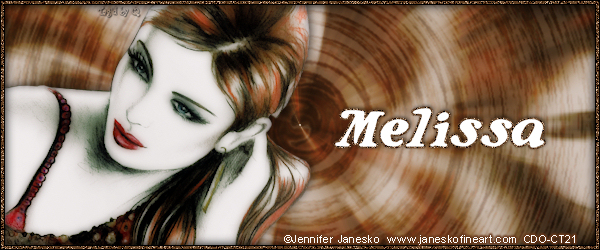
So I'm totally stoked. This is my first tutorial since joining the CDO CT. Wooo! LOL Anyway, this uses the gorgeous art of Jennifer Janesko, pack 162 which will be released soon. You can find this tut on Creative Addictions here.

If you decide to try my tut, please show me your results. I'd love to see them.